ESP32 PLC Family – Features & Communications
RS485
RS485 is a serial communication standard for long-distance, multi-device data transmission over a single wire pair. It is highly resistant to electrical noise, making it well-suited for industrial environments.
Key Specifications
| Parameter | Value |
|---|---|
| Interface type | RS-485 (Half Duplex) |
| Communication speed | up to 2.5 Mbps |
| Compatible protocols | Modbus RTU |
| Connectors | Push-in connectors (A+ and B-) |
| Termination resistor | 120 Ω |
Recommendation
Use twisted pair cable to reduce electromagnetic interference (EMI). In electrically noisy environments, use shielded twisted pair (STP).
Termination Resistor
The PLC can enable or disable the built-in 120 Ω termination resistor in software. Enable it when the PLC is at one end of the bus to prevent signal reflections.
Manual Status Management Required
Communication direction is not managed automatically. You must control the DE/RE pin connected to GPIO 27 manually to switch between send and receive modes.
Pin Conflict: RS485 and Serial TTL 1
RS485 and Serial TTL 1 share the same ESP32 GPIO pins. Only one can be active at a time.
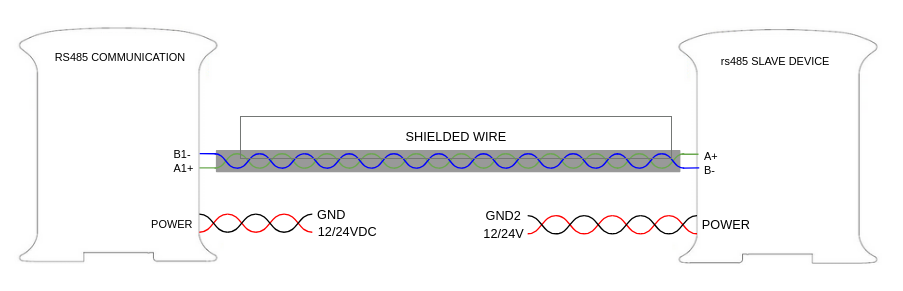
Connections
Configuration
The ESP32 PLC Family exposes an RS485 interface mapped to the Serial TTL 1 pins of the ESP32. The steps below cover both software setup and hardware configuration.
Software Prerequisites
Install the industrialshields-esp32 boards package, which includes an RS485
library compatible with the standard Arduino Serial API (e.g., available(),
read()). For installation instructions, see the
Initial Software Setup guide.
Hardware Prerequisites
Because RS485 shares pins with Serial TTL 1, you must disable Serial TTL 1 before using RS485. Turn OFF switch 3, located in the bottom-left of Zone A. For full switch reference, see Hardware Configuration.
RS485 Wiring Convention
Unlike most serial interfaces — where Tx on one device connects to Rx on another — RS485 uses a shared differential bus. Connect A+ to A+ and B− to B− across all devices on the bus.
Example
The following sketch demonstrates half-duplex RS485 communication. It forwards bytes received from the PC serial terminal over RS485, and prints any received RS485 bytes back to the terminal.
#include "RS485.h"

void setup() {
  Serial.begin(9600);
  RS485.begin(9600, HALFDUPLEX);
}

void loop() {
  if (Serial.available()) {
    read_from_serial();
  }
  if (RS485.available()) {
    read_from_rs485();
  }
}

static void read_from_serial(void) {
  char tx = Serial.read();
  if (tx != '\n') Serial.println(tx);
  RS485.write(tx);
}

static void read_from_rs485(void) {
  char rx = RS485.read();
  if (rx != '\n') {
    Serial.println(rx);
  }
}
RS485 Bus Best Practices
- All devices on the bus must share the same baud rate and serial parameters (data bits, parity, stop bits).
- Enable the termination resistor only on the device at each physical end of the RS485 line.
- Correct termination and biasing improve signal integrity, especially over longer cable runs.
Using Modbus RTU with RS485
While RS485 can be used directly as shown above, most industrial deployments use Modbus RTU as the application-layer protocol. To learn how to use Modbus with ESP32 PLCs, take the First Steps with Modbus course on the Industrial Shields website. A free account is required — register here.
RS232
RS232 is a serial communication standard that defines the electrical and signalling conventions between DTE (Data Terminal Equipment, such as a computer) and DCE (Data Communication Equipment, such as a modem).
Key Specifications
| Parameter | Value |
|---|---|
| Interface type | RS-232 (Full Duplex) |
| Compatible protocols | Modbus RTU |
| Connectors | Push-in connectors (Tx and Rx) |
Recommendation
Use twisted pair cable to reduce electromagnetic interference (EMI). In electrically noisy environments, use shielded twisted pair (STP).
Pin Conflict: RS232 and Serial TTL 2
RS232 and Serial TTL 2 share the same ESP32 GPIO pins. Only one can be active at a time.
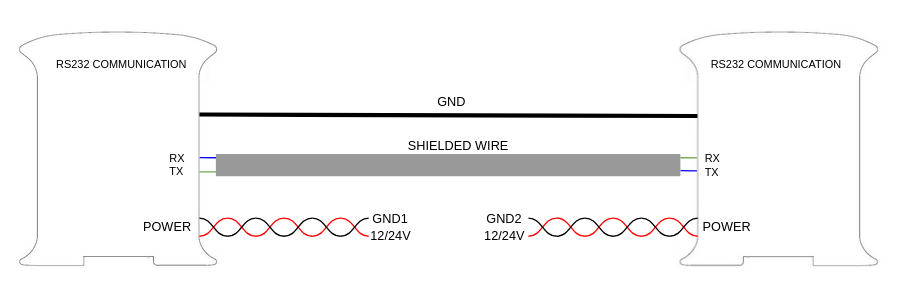
Connections
Configuration
The ESP32 PLC Family exposes an RS232 interface mapped to the Serial TTL 2 pins of the ESP32.
Software Prerequisites
Install the industrialshields-esp32 boards package, which includes an RS232
library compatible with the standard Arduino Serial API. For installation
instructions, see the Initial Software Setup guide.
Hardware Prerequisites
RS232 shares pins with both Serial TTL 2 and Expansion Module 2. Turn OFF switch 2 (bottom-left of Zone A) to disable both before using RS232. For full switch reference, see Hardware Configuration.
Examples
The following two sketches demonstrate RS232 write and read operations separately.
Write Example - reads a byte from the USB serial port and forwards it over RS232:
#include "RS232.h"

void setup() {
  Serial.begin(9600);
  RS232.begin(38400);
}

void loop() {
  if (Serial.available()) {
    byte tx = Serial.read();
    Serial.write(tx);   // Echo to USB serial
    RS232.write(tx);    // Forward over RS232
  }
}
Read Example - receives a byte over RS232 and prints it in both hexadecimal and decimal:
#include "RS232.h"

void setup() {
  Serial.begin(9600);
  RS232.begin(38400);
}

void loop() {
  if (RS232.available()) {
    byte rx = RS232.read();
    Serial.print("HEX: ");
    Serial.print(rx, HEX);
    Serial.print(", DEC: ");
    Serial.println(rx, DEC);
  }
}
Serial TTL
Serial TTL is a low-voltage, full-duplex communication interface that uses two signal lines (Tx and Rx) for bidirectional data exchange. The ESP32 PLCs provide two external TTL ports: Serial 1 (RX1/TX1) and Serial 2 (RX2/TX2).
Key Specifications
| Parameter | Value |
|---|---|
| Interface type | TTL |
| Connectors | Push-in connectors (TxY and RxY, where Y = port number) |
Recommendation
Use twisted pair cable to reduce electromagnetic interference (EMI). In electrically noisy environments, use shielded twisted pair (STP).
Shared Pins with RS485 and RS232
The two external TTL ports are also used by RS485 and RS232. Only 2 of the 4 TTL pins can be used simultaneously.
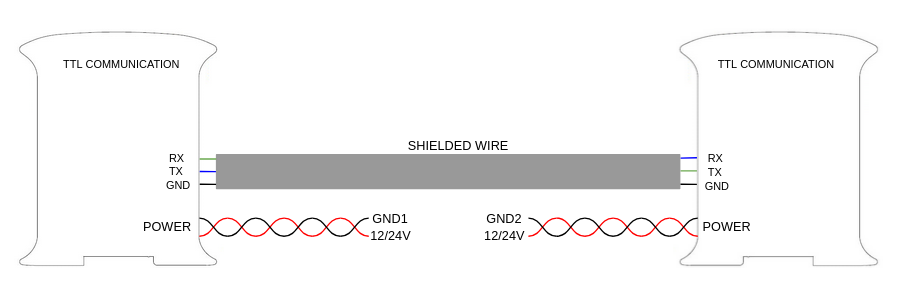
Connections
Configuration
Software Prerequisites
Use the Arduino Serial1 or Serial2 object directly - no additional library
is required.
Hardware Prerequisites
The on-board switch (bottom-left of Zone A) selects which protocol is active on the shared pins:
- Serial TTL 1: Set switch 3 to ON.
- Serial TTL 2: Set switch 2 to ON and switch 4 to OFF.
For full switch reference, see Hardware Configuration.
Example
The sketch below bridges Serial (USB) and Serial 1. To use Serial 2 instead,
replace Serial1 with Serial2.
void setup() {
  Serial.begin(9600);
  Serial1.begin(9600);
}

void loop() {
  if (Serial.available()) {
    Serial1.print((char)Serial.read());
  }
  if (Serial1.available()) {
    Serial.print((char)Serial1.read());
  }
}
I²C
I²C (Inter-Integrated Circuit) is a two-wire serial protocol that allows a microcontroller to communicate with multiple peripheral devices using a shared data line (SDA) and clock line (SCL). It is designed for short-distance communication within a single board or enclosure.
Key Specifications
| Parameter | Value |
|---|---|
| Interface type | I²C |
| Connectors | Push-in connectors (SDA - data, SCL - clock) |
| Signal voltage | 5 V (pull-up resistors included on board) |
Voltage Compatibility Warning
The I²C bus on the ESP32 PLC Family uses 5 V pull-ups. Do not connect devices that only support I²C at 3.3 V, as this may damage them.
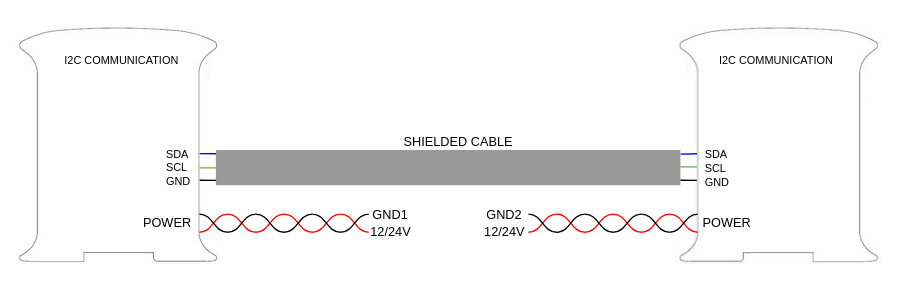
Connections
Configuration
The ESP32 PLC Family provides one I²C port (SDA + SCL). Additional I²C devices can be connected to this bus as slaves.
Hardware Prerequisites
No hardware configuration is needed beyond powering the PLC with a 12–24 V DC supply.
Software Prerequisites
Use the Arduino Wire library. Ensure the industrialshields-esp32 boards
package is installed and the correct PLC model is selected in your IDE. For
setup instructions, see the Initial Software Setup guide.
Example
The following sketch scans the I²C bus and prints the address of any detected devices to the serial monitor.
#include "Wire.h"

void setup() {
  Serial.begin(115200);
  Wire.begin();
}

void loop() {
  byte error, address;
  int nDevices = 0;

  delay(5000);

  Serial.println("Scanning for I2C devices...");
  for (address = 0x01; address < 0x7f; address++) {
    Wire.beginTransmission(address);
    error = Wire.endTransmission();
    if (error == 0) {
      Serial.printf("I2C device found at address 0x%02X\n", address);
      nDevices++;
    } else if (error != 2) {
      Serial.printf("Error %d at address 0x%02X\n", error, address);
    }
  }

  if (nDevices == 0) {
    Serial.println("No I2C devices found.");
  }
}
SPI
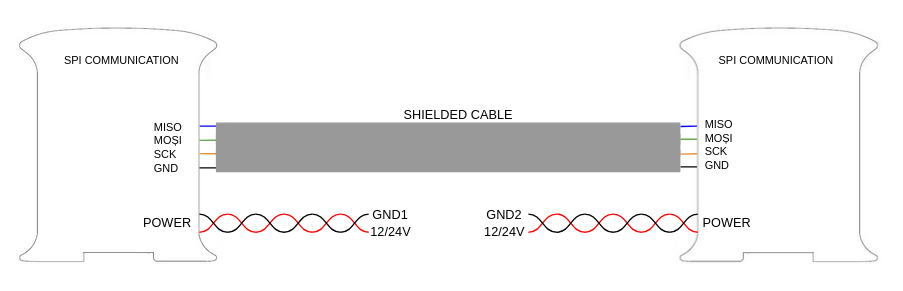
SPI (Serial Peripheral Interface) is a synchronous, full-duplex serial protocol for short-distance communication. It uses a master-slave architecture with four signals: SCLK (clock), MOSI (master out / slave in), MISO (master in / slave out), and a per-slave chip select (CS). On the ESP32 PLCs, the chip select pin corresponds to GPIO 0.
Key Specifications
| Parameter | Value |
|---|---|
| Interface type | SPI |
| Connectors | Push-in connectors (SO, SI, SCK) |
Voltage Level – 3.3 V Only
The SPI interface operates at 3.3 V. Applying higher voltages may permanently damage the PLC.
Connections
Configuration
The ESP32 PLC Family provides one SPI interface with one available slave select.
Software Prerequisites
Install the industrialshields-esp32 boards package, which includes an SPI library. For setup instructions, see the Initial Software Setup guide.
Hardware Prerequisites
Connect the SPI pins as follows:
| Function | PLC Terminal | ESP32 Pin |
|---|---|---|
| MISO | SO | GPIO 19 |
| MOSI | SI | GPIO 23 |
| CLOCK | SCK | GPIO 18 |
The chip select pin for the slave is GPIO 0.
Example
The sketch below configures the ESP32 as SPI master, transmits the character
'0' to the slave, and prints the simultaneously received byte to the serial
monitor. (SPI transfers are bidirectional - one byte is sent and one is received
per transaction.)
#include "SPI.h"

const int slaveSelectPin = GPIO_0;
volatile byte receivedData;

void setup() {
  Serial.begin(9600);
  pinMode(slaveSelectPin, OUTPUT);
  SPI.begin();
}

void loop() {
  SPI.beginTransaction(SPISettings(100000, MSBFIRST, SPI_MODE0));
  digitalWrite(slaveSelectPin, LOW);   // Begin transaction
  receivedData = SPI.transfer('0');
  digitalWrite(slaveSelectPin, HIGH);  // End transaction
  SPI.endTransaction();

  Serial.println((char)receivedData);
  delay(100);
}
Bluetooth
Bluetooth is a short-range wireless communication standard operating in the 2.4 GHz ISM band (2400–2483.5 MHz). Data is divided into packets and transmitted across up to 79 channels, each 1 MHz wide.
Key Specifications
| Parameter | Value |
|---|---|
| Interface type | Wireless |
Configuration
The ESP32 PLC Family supports Bluetooth through the ESP32's built-in Bluetooth v4.2 BR/EDR module. No hardware configuration is required. The only prerequisite is that the PLC is powered with a 12–24 V DC supply.
Software Prerequisites
Install the industrialshields-esp32 boards package. For setup instructions, see the Initial Software Setup guide.
Example
The sketch below uses the BluetoothSerial library to bridge USB serial and
Bluetooth. To communicate with the PLC wirelessly, pair your device via
Bluetooth and use a mobile app such as Serial Bluetooth Terminal. Select
the PLC from the device list after pairing.
#include "BluetoothSerial.h"

BluetoothSerial SerialBT;

void setup() {
  Serial.begin(115200);
  SerialBT.begin("ESP32test"); // Bluetooth device name
  Serial.println("Device started. You can now pair via Bluetooth.");
}

void loop() {
  if (Serial.available()) {
    SerialBT.write(Serial.read());
  }
  if (SerialBT.available()) {
    Serial.write(SerialBT.read());
  }
  delay(20);
}
Wi-Fi
Wi-Fi is a wireless networking technology based on the IEEE 802.11 standards. It enables high-speed communication between devices and access points without physical cables, and supports both secured and open networks over short and medium distances.
Key Specifications
| Parameter | Value |
|---|---|
| Interface type | Wireless |
Configuration
The ESP32 PLC Family includes Wi-Fi support through the ESP32 microcontroller. No hardware configuration is required. The only prerequisite is that the PLC is powered with a 12–24 V DC supply.
Software Prerequisites
Install the industrialshields-esp32 boards package. For setup instructions, see the Initial Software Setup guide.
Example
The sketch below connects the ESP32 to a Wi-Fi network and prints the assigned
IP address to the serial monitor. Replace the ssid and password values with
your network credentials.
#include "WiFi.h"

const char* ssid     = "YOUR_SSID";
const char* password = "YOUR_PASSWORD";

void setup() {
  Serial.begin(115200);
  WiFi.begin(ssid, password);

  while (WiFi.status() != WL_CONNECTED) {
    delay(500);
    Serial.print(".");
  }

  Serial.println("");
  Serial.print("Connected to: ");
  Serial.println(ssid);
  Serial.print("IP address: ");
  Serial.println(WiFi.localIP());
}

void loop() {}
Ethernet
Ethernet is the standard technology for wired local area networks (LANs), defined by the IEEE 802.3 protocol. It enables reliable, high-speed data transfer between devices within a building or campus, at speeds up to 1 Gbps.
Key Specifications
| Parameter | Value |
|---|---|
| Interface type | Ethernet |
| Communication speed | up to 1 Gbps |
Connections
Configuration
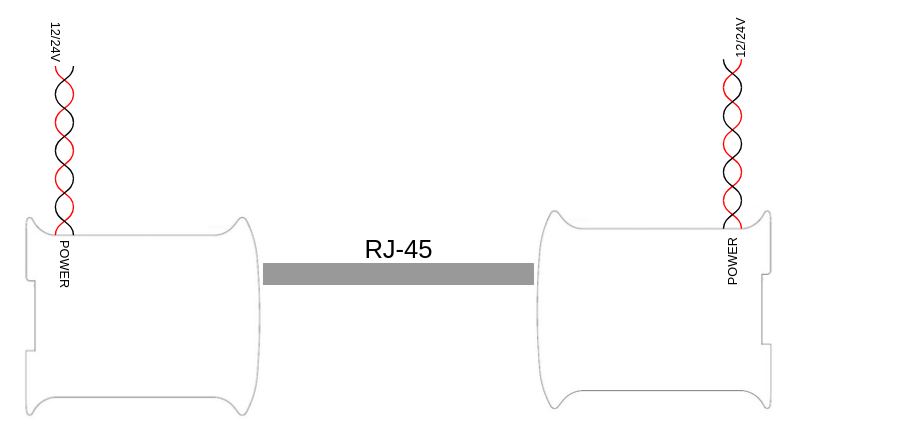
The ESP32 PLC Family includes an Ethernet port driven by the W5500 controller, which communicates with the ESP32 over SPI. No hardware configuration is required beyond powering the PLC with a 12–24 V DC supply.
Software Prerequisites
Install the industrialshields-esp32 boards package, which includes an Ethernet library with built-in examples. To access them, open the Arduino IDE and go to File > Examples > Ethernet. For setup instructions, see the Initial Software Setup guide.
Example
The sketch below is a connectivity diagnostic. It initializes the W5500 Ethernet
controller using DHCP, identifies the hardware revision, and attempts a TCP
connection to www.google.com on port 80.
#include "Ethernet.h"

#define REMOTE "www.google.com"
const uint16_t port = 80;
uint8_t mac[] = {0xAA, 0xBB, 0xCC, 0xDD, 0xEE, 0x01};
EthernetClient c;

void setup() {
  Serial.begin(9600L);
  Serial.println("Ethernet starting...");
  test();
}

void loop() {
  if (!c.connected()) {
    Serial.println("Disconnected – retrying...");
    test();
  }
  delay(1000);
}

void test() {
  Ethernet.begin(mac);  // DHCP configuration

  switch (Ethernet.hardwareStatus()) {
    case EthernetW5100: Serial.println("W5100 found"); break;
    case EthernetW5200: Serial.println("W5200 found"); break;
    case EthernetW5500: Serial.println("W5500 found"); break;
    default:            Serial.println("Unknown hardware"); break;
  }

  uint8_t MAC[6];
  Ethernet.MACAddress(MAC);
  for (int i = 0; i < 6; ++i) {
    if (i > 0) Serial.print(':');
    Serial.print(MAC[i], HEX);
  }
  Serial.println();

  Serial.println(Ethernet.localIP());
  if (Ethernet.localIP() == IPAddress({0,0,0,0})) {
    Serial.println("Local IP: FAIL");
  } else {
    Serial.println("Local IP: OK");
    if (c.connect(REMOTE, port)) {
      Serial.println("Remote connection: OK");
    } else {
      Serial.println("Remote connection: FAIL");
    }
  }
}
RTC
A Real-Time Clock (RTC) is an integrated circuit that tracks the current time and date independently of the main system, typically sustained by a backup battery when the main power is off. It is widely used in embedded systems for accurate timekeeping.
Configuration
The ESP32 PLC includes a DS3132 RTC module connected to the ESP32 over I²C. The module provides seconds, minutes, hours, day, date, month, and year in BCD format, along with 56 bytes of non-volatile SRAM. A 3.3 V lithium coin cell battery maintains timekeeping when the PLC is unpowered.
Hardware Prerequisites
No hardware setup is needed. Power the PLC with a 12–24 V DC supply and ensure a lithium coin cell battery is installed to preserve time across power cycles.
Software Prerequisites
Use the RTC library included with the industrialshields-esp32 boards package. For setup instructions, see the Initial Software Setup guide.
Example
The sketch below reads the current date and time from the RTC and prints it to the serial monitor once per second.
#include "RTC2.h"

void setup() {
  Serial.begin(9600L);
}

void loop() {
  if (!RTC.read()) {
    Serial.println("Read error: has the time been set?");
  } else {
    Serial.print("Time: ");
    Serial.print(RTC.getYear());   Serial.print("-");
    Serial.print(RTC.getMonth());  Serial.print("-");
    Serial.print(RTC.getMonthDay()); Serial.print(" ");
    Serial.print(RTC.getHour());   Serial.print(":");
    Serial.print(RTC.getMinute()); Serial.print(":");
    Serial.print(RTC.getSecond()); Serial.print(" (");
    Serial.print(RTC.getTime());   Serial.println(")");
  }
  delay(1000);
}
ESP32 Dual Core
The ESP32 microcontroller includes two Xtensa 32-bit LX6 cores. By default, Arduino sketches run on core 1. The second core (core 0) can be used in parallel to improve performance and distribute workloads.
Configuration
Hardware Prerequisites
No hardware setup is needed. Power the PLC with a 12–24 V DC supply.
Software Prerequisites
No additional libraries are required — the Arduino IDE handles dual-core support natively. For setup instructions, see the Initial Software Setup guide.
Example
The sketch below prints which core each function runs on by default:
void setup() {
  Serial.begin(115200);
  Serial.print("setup() running on core ");
  Serial.println(xPortGetCoreID());
}

void loop() {
  Serial.print("loop() running on core ");
  Serial.println(xPortGetCoreID());
}
To execute code on core 0, define a loop1() function. The runtime assigns
loop() to core 1 and loop1() to core 0:
void setup() {
  // Shared initialization
}

void loop() {
  // Tasks for core 1
}

void loop1() {
  // Tasks for core 0
}
Concurrency Considerations
When both cores access shared resources (e.g., the Serial port) simultaneously, race conditions can occur. Use synchronization primitives such as semaphores or mutexes to coordinate access safely.
FreeRTOS
FreeRTOS is an open-source real-time operating system (RTOS) for microcontrollers and embedded systems. It provides a lightweight kernel with support for multitasking, priority scheduling, and synchronization primitives such as semaphores and mutexes.
On ESP32 PLCs, FreeRTOS is integrated into ESP-IDF (which Arduino leverages), so no additional installation is needed. It is particularly useful for applications that require precise timing or concurrent task execution.
Configuration
Hardware Prerequisites
No hardware setup is needed. Power the PLC with a 12–24 V DC supply.
Software Prerequisites
No library imports are required — FreeRTOS is available automatically in any ESP32 Arduino sketch. For IDE setup instructions, see the Initial Software Setup guide.
Example
The sketch below creates two independent FreeRTOS tasks using
xTaskCreate().
Each task toggles a different output pin independently:
TaskHandle_t Task1;
TaskHandle_t Task2;

void setup() {
  Serial.begin(115200);
  pinMode(Q0_0, OUTPUT);
  pinMode(Q0_1, OUTPUT);

  xTaskCreate(Task1code, "Task1", 10000, NULL, 1, &Task1);
  delay(500);
  xTaskCreate(Task2code, "Task2", 10000, NULL, 1, &Task2);
  delay(500);
}

void Task1code(void* parameter) {
  Serial.print("Task1 running on core ");
  Serial.println(xPortGetCoreID());
  for (;;) {
    digitalWrite(Q0_0, HIGH); delay(500);
    digitalWrite(Q0_0, LOW);  delay(500);
  }
}

void Task2code(void* parameter) {
  Serial.print("Task2 running on core ");
  Serial.println(xPortGetCoreID());
  for (;;) {
    digitalWrite(Q0_1, HIGH); delay(500);
    digitalWrite(Q0_1, LOW);  delay(500);
  }
}

void loop() {}
SD Card
SD (Secure Digital) cards are compact, non-volatile flash storage devices. The ESP32 PLC includes a built-in MicroSD slot with the following specifications:
- Slot type: MicroSD
- Maximum usable capacity: 32 GB (larger cards are supported, but only the first 32 GB is accessible)
- Supported file systems: FAT16, FAT32
Configuration
The SD card slot communicates with the ESP32 over SPI.
Hardware Prerequisites
No hardware setup is needed beyond powering the PLC with a 12–24 V DC supply. Insert a compatible MicroSD card before running any SD operations.
Software Prerequisites
Use the SD library included with the industrialshields-esp32 boards package. For setup instructions, see the Initial Software Setup guide.
Example
The sketch below initializes the SD card and recursively lists all files and directories from the root, printing each name and file size to the serial monitor.
#include "SD.h"

File root;

void setup() {
  Serial.begin(115200);
  while (!Serial);

  Serial.print("Initializing SD card...");

  int SS = SD.begin(13);
  if (!SS) {
    Serial.println("Initialization failed. Check:");
    Serial.println("  1. Is a card inserted?");
    Serial.println("  2. Is the wiring correct?");
    Serial.println("  3. Is the chipSelect pin set correctly?");
    Serial.println("Press reset or reopen the serial monitor after fixing the issue.");
    while (true);
  } else {
    Serial.println(SS, DEC);
  }

  Serial.println("Initialization complete.");
  root = SD.open("/");
  printDirectory(root, 0);
  Serial.println("Done.");
}

void loop() {}

void printDirectory(File dir, int numTabs) {
  while (true) {
    File entry = dir.openNextFile();
    if (!entry) break;
    for (uint8_t i = 0; i < numTabs; i++) Serial.print('\t');
    Serial.print(entry.name());
    if (entry.isDirectory()) {
      Serial.println("/");
      printDirectory(entry, numTabs + 1);
    } else {
      Serial.print("\t\t");
      Serial.println(entry.size(), DEC);
    }
    entry.close();
  }
}
GPIO
Several ESP32 GPIO pins are exposed directly on the PLC for general-purpose use. Pins operate at either 3.3 V or 5 V depending on the terminal.
Voltage Limits
Applying a voltage higher than a pin's rated level may permanently damage the PLC.
3.3 V Pins
| PLC Terminal | ESP32 Pin |
|---|---|
| TX1 | GPIO 17 |
| RX1 | GPIO 16 |
| VN | SENS VN (GPIO 39) |
| VP | SENS VP (GPIO 36) |
| SO | GPIO 19 |
| SI | GPIO 23 |
| SCK | GPIO 18 |
- Serial 1 (RX1/TX1): Can be used as 3.3 V GPIO pins.
- VP/VN: Input-only 3.3 V pins.
- SPI (SO/SI/SCK): Can be used as 3.3 V GPIO, but only when neither SPI nor Ethernet is active (Ethernet uses SPI internally).
Switch Configuration Required
To use Serial 1 pins as GPIO, configure the corresponding switches correctly. See Hardware Configuration for details.
5 V Pins
| PLC Terminal | ESP32 Pin |
|---|---|
| SCL | GPIO 22 |
| SDA | GPIO 21 |
| GPIO0 | GPIO 0 |
- I²C (SDA/SCL): These pins use on-board pull-up resistors and read 5 V when floating. They can only be used in a pull-up configuration.
- GPIO 0: Operates at 5 V DC and supports both digital input and output.