ESP32 PLC - Remote Programming
ESP32 OTA Updater (Ethernet): Configuration & Deployment Guide
This guide explains how to configure and deploy an ESP32 OTA (Over-The-Air) update system over Ethernet using Node-RED. Follow the steps below to set up firmware updates over your local network.
Prerequisites
Before you begin, install the following tools:
- ESP32 PLC: Any of our models of the ESP32 PLC Family powered within the specified range of 12-24V.
- Arduino IDE: For compiling and uploading ESP32 firmware
- Node-RED: For managing OTA update logic
Note
Arduino IDE setup: See ESP32 PLC - Characteristics (Initial Software Installation).
Node-RED setup: See Node-RED's website Getting Started section.
Required Files
Make sure you have these configuration files:
- Arduino sketch: OTA_ESP32_ETHERNET.ino
- Node-RED flow: flows.json
1. ESP32 Firmware Configuration
All configuration parameters are located at the top of the sketch, before setup().
Network Settings (Device Identity)
byte mac[] = { 0xDE, 0xAD, 0xBE, 0xEF, 0xFE, 0x31 };  // Must be unique per device on the LAN
IPAddress staticIP(10, 10, 10, 31);   // Target static IP for this ESP32
IPAddress gateway(10, 10, 10, 1);     // Your router/gateway IP
IPAddress subnet(255, 255, 255, 0);   // Your subnet mask
IPAddress dns1(8, 8, 8, 8);           // DNS (change if using internal DNS)
Update Server Configuration
IPAddress updateServerIP(10, 10, 10, 2);   // IP of the machine running Node-RED
const int updateServerPort = 1880;         // Node-RED HTTP port (default: 1880)
HTTP Endpoints
const char* updateCheckUrl = "/esp32plc14_31/update";    // Must match Node-RED flow URL
const char* statusPostUrl  = "/esp32plc14_31/status";    // Must match Node-RED flow URL
const char* firmwareUrl    = "/esp32plc14_31/firmware";  // Must match Node-RED flow URL
Warning
Keep the endpoint paths consistent. If you rename esp32plc14_31, update it everywhere.
Firmware Version
Note
This version is reported to Node-RED for tracking purposes only.
Update Check Interval
2. Node-RED Flow Configuration
Import the provided flow file into Node-RED, then complete the setup below.
Step 1: Set Firmware File Path
- Open the
file innode - Set the full path to your compiled
.binfile:
Step 2: Define Firmware Version
- Open the
UpdateFirmwarefunction node - Update the version string:
Step 3: Match API Endpoints
Verify that all http in nodes match your ESP32 configuration:
| Purpose | Endpoint URL |
|---|---|
| Update check | /esp32plc14_31/update |
| Firmware | /esp32plc14_31/firmware |
| Status | /esp32plc14_31/status |
Warning
If you changed the path in the sketch, update these nodes to match.
Step 4 (Optional): Adjust Update Window
- Open the
triggernode. - Default duration: 30 seconds after Node-RED restart
- Increase if devices need more time to connect
3. Deployment & Execution
Flash the ESP32
- Open the sketch in Arduino IDE
- Update all the configuration values listed in ESP32 Firmware Configuration
- Compile and upload the firmware
- Open Serial Monitor (115200 baud)
Expected output:
Deploy the Node-RED flow
-
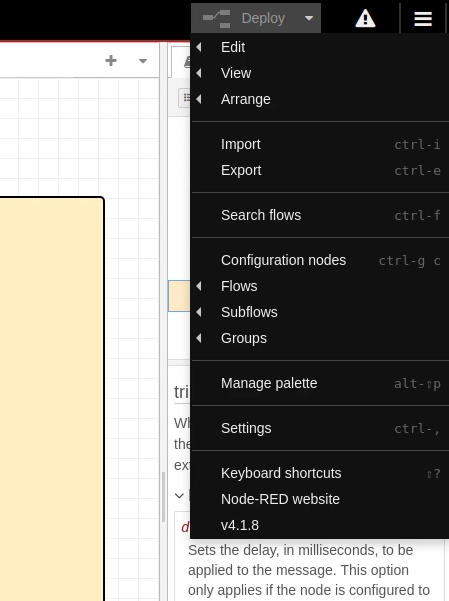
In Node-RED, go to Menu → Import → Clipboard
Note
-
Paste the JSON or upload
flows.json -
Complete all configuration steps in Node-RED Flow Configuration
-
Ensure the
.binfile is in the correct locationNote
To compile the binary (
.bin) you can do so by going to Sketch → Export Compiled Binary or simply pressingAlt+Ctrl+S, as shown in the image below.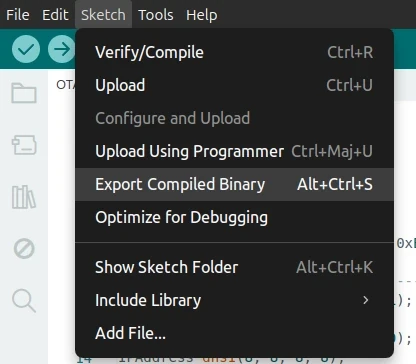
-
Click Deploy.
Enable OTA update
-
Click the Inject
truebutton in the flow.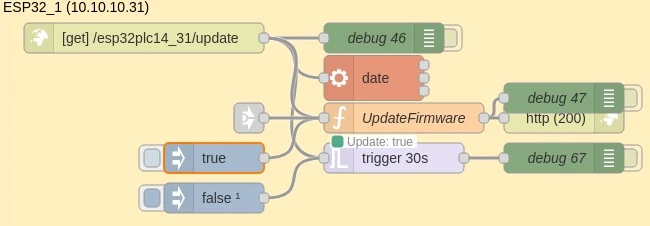
-
Confirm the
UpdateFirmwarenode turns green.
Verification Checklist
Use this checklist to confirm everything is working correctly:
| Component | Expected Behavior |
|---|---|
| ESP32 Serial Monitor | Checks for updates every 10 seconds |
| Node-RED (no update) | Displays NO UPDATE |
| Node-RED (update enabled) | Shows UPDATE → UPDATE SUCCESS |
| ESP32 after update | Reboots with success message |
| Update flag | Resets automatically (node turns red) |
ESP32 OTA Updater (WiFi): Configuration & Deployment Guide
This guide walks you through setting up Over-The-Air (OTA) firmware updates on an ESP32 PLC over WiFi. Using a built-in web server embedded directly in the device, you can push new firmware wirelessly from any browser - no cables required after the initial upload.
Prerequisites
Before you begin, make sure you have the following.
- ESP32 PLC: Any of our models of the ESP32 PLC Family powered within the specified range of 12-24V.
-
Arduino IDE: For compiling and uploading ESP32 firmware
Note
Arduino IDE setup: See ESP32 PLC - Characteristics (Initial Software Installation).
-
WiFi network: A stable 2.4 GHz WiFi network accessible from your ESP32 PLC.
Required Files
Download the following file before proceeding:
- Arduino sketch: OTA_ESP32.ino
How It Works
The ESP32 OTA Web Updater works in three stages:
-
Initial serial upload: The first firmware version must be flashed via the serial port. This bootstraps the OTA capability on the device.
-
Embedded web server: Once running, the ESP32 hosts a lightweight web server accessible from any browser on the same network. This is the interface you will use for all future updates.
-
Core OTA code requirement: Every subsequent firmware version must include the core OTA code. Uploading a sketch without it will permanently disable OTA access, requiring a serial connection to recover.
Warning
Never upload a sketch that omits the core OTA code - doing so will lock out the web interface and require a physical serial reconnection.
1. Configure the Firmware
All configuration is done at the top of the sketch, before setup().
WiFi Credentials
Replace the placeholders below with your actual network credentials:
/* Replace with your WiFi credentials **/
const char* ssid     = "YourSSID";
const char* password = "YourPassword";
Once configured, upload the sketch to the ESP32 via USB/serial. The device will connect to your WiFi network and start the OTA web server automatically.
Note
You can flash the core OTA code alone (without any application logic) to prepare the device for wireless updates later.
2. Access the OTA Web Interface
After the ESP32 boots and connects to WiFi, open a browser and navigate to one of the following:
- IP address - Shown in the Arduino Serial Monitor at 115200 baud rate boot.
- Local hostname -
http://esp32.local(uses mDNS; may not work on all networks).
The login page will appear:
Note
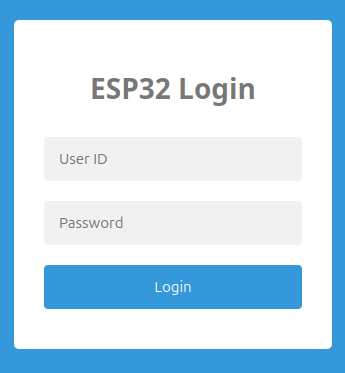
Enter your credentials:
| Field | Default value |
|---|---|
| Username | admin |
| Password | admin |
Warning
Change the default credentials before deploying in a production environment.
The default admin/admin login provides no security on an open network.
After logging in, the OTA upload page will be displayed:
Note
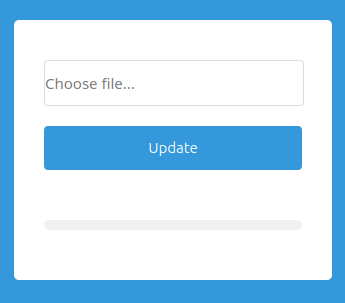
3. Write, Build & Update New Firmware
Add Your Application Code
Every new firmware version must be built on top of the core OTA sketch. Insert your logic in the two designated sections:
/* Additional set up code here */- runs once at the startup./* Additional loop code here */- runs repeatedly.
Example - blink an output every second:
void setup() {
  /* Core OTA setup code */

  /* Additional set up code here */
  pinMode(Q0_0, OUTPUT);
}

void loop() {
  /* Core OTA loop code */

  /* Additional loop code here */
  digitalWrite(Q0_0, HIGH);
  delay(1000);
  digitalWrite(Q0_0, LOW);
  delay(1000);
}
Export the Compiled Binary
OTA updates require a compiled .bin file - not a .ino source file:
-
In Arduino IDE, go to Sketch → Export Compiled Binary (or press
Ctrl+Alt+S).Note
The
.binfile is saved in the same folder as your sketch.
Upload via the OTA Interface
- Return to the OTA web interface in your browser.
- Click Choose File and select the generated
.binfile. - Click Update.
The progress bar will track the upload. The ESP32 will reboot automatically once the transfer completes and begin running the new firmware.
Note
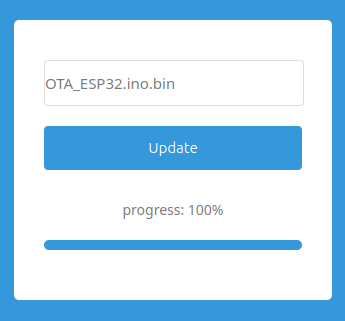
Monitor the Serial Monitor for confirmation messages or errors.
Verification Checklist
Use this checklist to confirm the full OTA workflow is functioning correctly:
| Step | Expected Result |
|---|---|
| Serial Monitor after boot | Displays the assigned IP address |
| Browser navigation to IP | Shows the OTA login page |
| Login with credentials | Grants access to the firmware upload page |
.bin file selected & Update |
Progress bar advances; ESP32 reboots on completion |
| ESP32 after reboot | Runs new firmware; new IP visible in Serial Monitor |
| OTA web interface accessible | Login page still available for the next update cycle |