M-Duino Family - Features & Communications
RS485
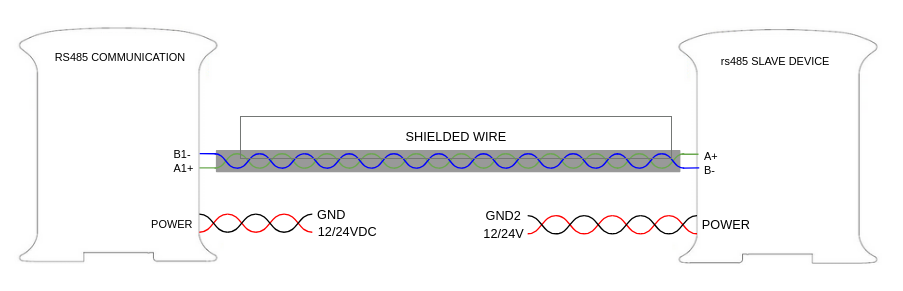
RS485 is a serial communication standard for long-distance, multi-device data transmission over a single wire pair. It is highly resistant to electrical noise, making it well-suited for industrial environments.
Key Specifications
| Parameter | Value |
|---|---|
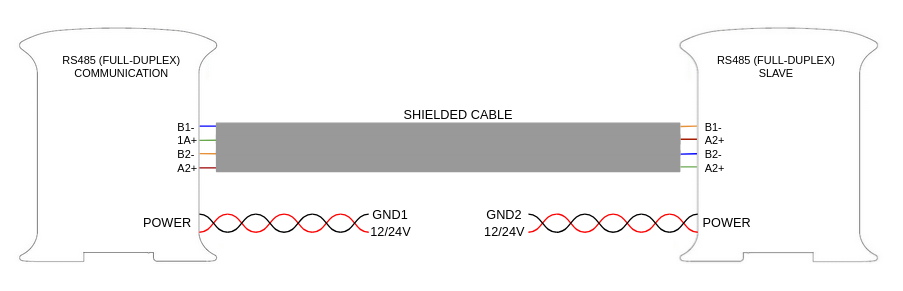
| Interface type | RS-485 (Half Duplex of Full Duplex) - depending on the switch configuration |
| Communication speed | up to 2.5 Mbps |
| Compatible protocols | Modbus RTU |
| Connectors | Push-in connectors (A+ and B-) |
| Termination resistor | 120 Ω |
Recommendation
Use twisted pair cable to reduce electromagnetic interference (EMI).
In electrically noisy environments, use shielded twisted pair (STP).
Termination Resistor
The PLC can enable or disable the built-in 120 Ω termination resistor in software. Enable it when the PLC is at one end of the bus to prevent signal reflections.
Connections
Configurations
The M-Duino Family provides RS485 communication capabilities, thanks to the incorporated MAX485 transceiver chip. The steps below cover both software setup and hardware configuration.
Software Prerequisites
Install the industrialshields-avr boards package, which includes an RS485 library compatible with the standard Arduino Serial API (e.g., available(), read()). For installation instructions, see the Initial Software Setup guide.
Hardware Prerequisites
Because RS485 can operate as both Half Duplex (HD) and Full Duplex (FD), the user has to use the bottom switch 1 in the top of Zone A's back to set it. For full switch reference, see Hardware Configuration.
RS485 Wiring Convention
Unlike most serial interfaces — where Tx on one device connects to Rx on another — RS485 uses a shared differential bus. Connect A+ to A+ and B− to B− across all devices on the bus.
Attention
Remember to properly power the PLC with a 12-24V power supply.
Example
The following sketch demostrates half-duplex RS485 communication. IT forwards bytes received from the PC serial terminal over RS485, and prints any received RS485 bytes back to the terminal.
#include "RS485.h"

void setup() {
  // Begin Serial port
  Serial.begin(9600);
  // Begin RS485 port
  RS485.begin(9600, HALFDUPLEX);
}

void loop() {
  // Send one byte for the serial, receive this byte by rs485
  if (Serial.available()) {
    read_from_serial();
  }
  if (RS485.available()) {
    read_from_rs485();
  }
}

static void read_from_serial(void) {
  char tx = Serial.read(); // Read byte
  if (tx != '\n') Serial.println(tx); // Print the byte
  RS485.write(tx); // Transmit by rs485
}

static void read_from_rs485(void) {
  char rx = RS485.read(); // Receive the same byte
  if (rx != '\n') {
    Serial.println(rx); // Print the byte
  }
}
RS485 Bus Best Practices
-
All devices on the bus must share the same baud rate and serial parameters (data bits, parity, stop bits).
-
Enable the termination resistor only on the device at each physical end of the RS485 line.
-
Correct termination and biasing improve signal integrity, especially over longer cable runs.
Using Modbus RTU with RS485
While RS232 can be used directly as shown above, most industrial deployments use Modbus RTU as the application-layer protocol. To learn how to use Modbus with M-Duino PLCs, take the First Steps with Modbus course on the Industrial Shields website. A free account is required — register here.
RS232
RS232 is a serial communication standard that defines the electrical and signalling conventions between DTE (Data Terminal Equipment, such as a computer) and DCE (Data Communication Equipment, such as a modem).
Key Specifications
| Parameter | Value |
|---|---|
| Interface type | RS-232 (Full Duplex) |
| Compatible protocols | Modbus RTU |
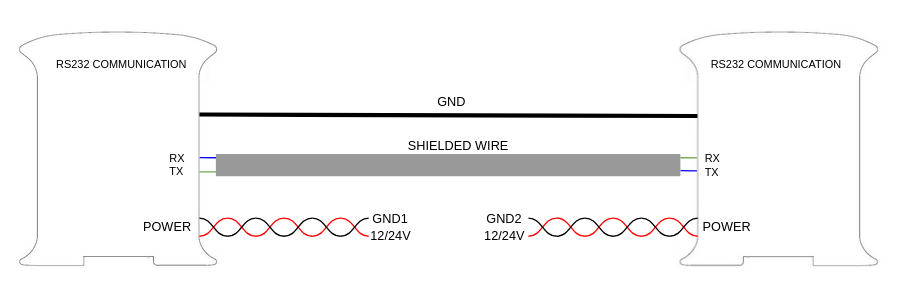
| Connectors | Push-in connectors (Tx and Rx) |
Recommendation
Use twisted pair cable to reduce electromagnetic interference (EMI).
In electrically noisy environments, use shielded twisted pair (STP).
Connections
Configurations
The M-Duino Family provides RS232 communication capabilities, thanks to the incorporated MAX232 dual transmitter/dual receiver chip. The steps below cover both software setup and hardware configuration.
Software Prerequisites
Install the industrialshields-avr boards package, which includes an RS232 library. For installation instructions, see the Initial Software Setup guide.
Hardware Prerequisites
As RS232 is always available as a Full Duplex communication there is no hardware configuration needed on the board.
Attention
Remember to properly power the PLC with a 12-24V power supply.
Example
The following two sketches shows some read and write operations separately.
Write Example - reads a byte from the USB serial port and forwards it over RS232:
#include "RS232.h"

void setup() {
  Serial.begin(9600);
  RS232.begin(38400);
}

void loop() {
  if (Serial.available()) {
    byte tx = Serial.read();
    Serial.write(tx);   // Echo to USB serial
    RS232.write(tx);    // Forward over RS232
  }
}
Read Example - receives a byte over RS232 and prints it in both hexadecimal and decimal:
#include "RS232.h"

void setup() {
  Serial.begin(9600);
  RS232.begin(38400);
}

void loop() {
  if(RS232.available()) {
    byte rx = RS232.read();
    Serial.print("HEX: ");
    Serial.print(rx, HEX);
    Serial.print(", DEC: ");
    Serial.println(rx, DEC);
  }
}
Using Modbus RTU with RS232
While RS232 can be used directly as shown above, most industrial deployments use Modbus RTU as the application-layer protocol. To learn how to use Modbus with M-Duino PLCs, take the First Steps with Modbus course on the Industrial Shields website. A free account is required — register here.
Serial TTL
Serial TTL is a low-voltage, full-duplex communication interface that uses two signal lines (Tx and Rx) for bidirectional data exchange. The M-Duino PLCs have two external TTL ports, Serial 1 (RX1/TX1) and Serial 0 (RX0/TX0).
Key Specifications
| Parameter | Value |
|---|---|
| Interface type | TTL |
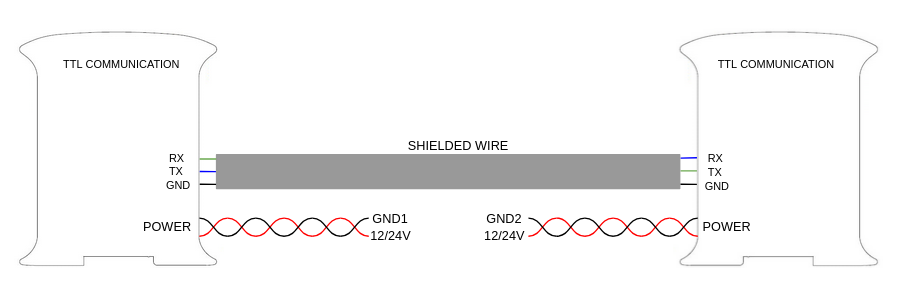
| Connectors | Push-in connectors (TxY and RxY, where Y = port number) |
Recommendation
Use twisted pair cable to reduce electromagnetic interference (EMI).
In electrically noisy environments, use shielded twisted pair (STP).
Connections
Configurations
Software Prerequisites
Use the Arduino Serial1 object directly - no additional library is required.
Hardware Prerequisites
The M-Duino PLC features two serial ports. One of them, the Serial 1 (TX1, RX1), needs to be activated using the A zones top left switch. For more information about the switches, check the Hardware Configuration section.
For the Serial communication to work, the following connections between the PLC and the other device need to be made:
- TX -> RX
- RX -> TX
- GND (both devices need to share a common ground)
Attention
The M-Duino Family serial ports work at 5V levels. Higher voltage levels might damage the PLC.
Also, remember to properly power the PLC with a suitable 12-24Vdc power supply.
Example
The following sketch shows how to use Serial 1 to send and receive a byte using the USB serial port and the Serial 1.
void setup() {
  // Initialize serial connections
  Serial.begin(9600);
  Serial1.begin(9600);
}

void loop() {
  // Read byte from Serial and send it through Serial1
  if (Serial.available()) {  // Check if there is an available byte to read
    Serial1.print((char)Serial.read());
  }

  // Read byte from Serial1 and send it through Serial
  if (Serial1.available()) {
    Serial.print((char)Serial1.read());
  }
}
Warning
Serial 0 (RX0/TX0) is shared with the USB interface. If using the pins, the USB communication cannot work at the same time.
I²C
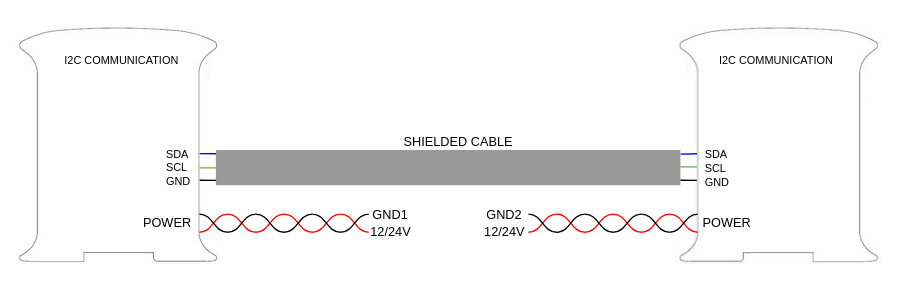
I²C (Inter-Integrated Circuit) is a two-wire serial protocol that allows a microcontroller to communicate with multiple peripheral devices using a shared data line (SDA) and clock line (SCL). It is designed for short-distance communication within a single board or enclosure.
Key specification
| Parameter | Value |
|---|---|
| Interface type | I²C |
| Communication speed | 100 Kbit/s in standard mode |
| Connectors | Push-in connectors (SDA - data, SCL - clock) |
| Signal voltage | 5 V (pull-up resistors included on board) |
Voltage Compatibility Warning
The I²C bus on the M-Duino Family uses 5 V pull-ups. Do not connect devices that only support I²C at 3.3 V, as this may damage them.
Connections
Configurations
The M-Duino Family provides one I²C port (SDA + SCL). Additional I²C devices can be connected to this bus as slaves.
Software Setup
Use the Arduino Wire library. Ensure the industrialshields-avr boards package is installed And The Correct Plc Model Is Selected in your IDE. For setup instructions, see the Initial Software Setup guide.
Hardware Prerequisites
The SCL and SDA pins need to be activated using the top switch on zone A's back (SCL and SDA need to be selected in switches 3 and 4). For more information about the switches, check the Hardware Configuration section.
Attention
Remember to properly power the PLC with a suitable 12-24Vdc power supply.
Example
The following sketch scans the I²C bus and prints the address of any detected devices to the serial monitor.
#include "Wire.h"

void setup() {
  Serial.begin(115200);
  Wire.begin();
}

void loop() {
  byte error, address;
  int nDevices = 0;

  delay(5000);

  Serial.println("Scanning for I2C devices...");
  for (address = 0x01; address < 0x7f; address++) {
    Wire.beginTransmission(address);
    error = Wire.endTransmission();

    if (error == 0) {
      Serial.print("I2C device found at address 0x");
      Serial.println(address);
      nDevices++;
    } else if (error != 2) {
      Serial.print("Error ");
      Serial.print(error);
      Serial.print(" at address 0x");
      Serial.println(address);
    }
  }

  if (nDevices == 0) {
    Serial.println("No I2C devices found.");
  }
}
SPI
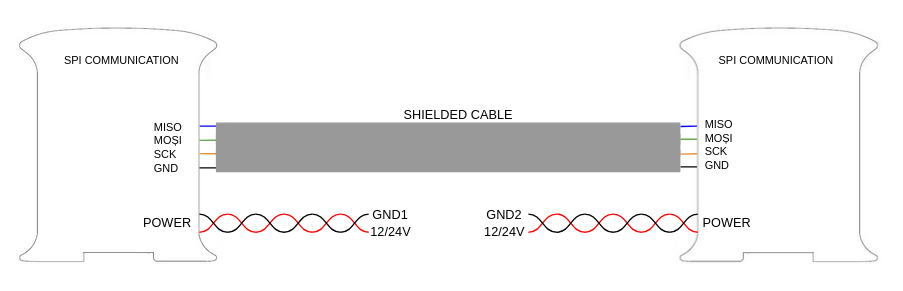
SPI (Serial Peripheral Interfce) is a synchronous, full-duplex serial protocol for short-distance communication. It uses a master-slave architecture with 4 pins: SCLK (clock), MOSI (master out / slave in), MISO (master in / slave out), and a per-slave chip select (CS). On the M-Duino PLC, the chip select pin can be either Pin 2 or Pin 3.
Key specification
| Parameter | Value |
|---|---|
| Interface type | SPI |
| Connectors | Push-in connectors (SO, SI, SCK) |
Voltage Warning
The SPI bus on the M-Duino Family works at 5V voltage levels, any higher voltage might damage the PLC.
Connections
Configurations
The M-Duino Family features one SPI port and up to 2 slaves.
Software Setup
Install the industrialshields-avr boards package, which includes an SPI library. For setup instructions, see the Initial Software Setup guide.
Hardware Prerequisites
In order to use the SPI, the 3 mention pins (SO, SI, SCK) musb be properly connected:
| Function | M-Duino PLC Pin | Arduino Mega Pin |
|---|---|---|
| MISO | SO | 50 |
| MOSI | SI | 51 |
| CLOCK | SCK | 52 |
| CS | PIN2 / PIN3 | 2 / 3 |
For each slave, either Pin 2 or Pin 3, must be activated using the switch in the top area of zone A's back. For full switch reference, see the Hardware Configuration section.
Attention
Remember to properly power the PLC with a suitable 12-24Vdc power supply.
Example
The sketch below configures the M-Duino as SPI master, transmits the character '0' to the slave, and prints the simultaneously received byte to the serial monitor. (SPI transfers are bidirectional - one byte is sent and one is received per transaction.)
#include "SPI.h"

// Set pin as the slave select:
const int slaveSelectPin = 2;
volatile byte receivedData;

void setup() {
  Serial.begin(9600);
  // Set the slaveSelectPin as an output:
  pinMode(slaveSelectPin, OUTPUT);
  // Initialize SPI:
  SPI.begin();
}

void loop() {
  SPI.beginTransaction(SPISettings(100000, MSBFIRST, SPI_MODE0));
  digitalWrite(slaveSelectPin, LOW);  // Start of transmission: set chip select LOW
  receivedData = SPI.transfer('0');
  digitalWrite(slaveSelectPin, HIGH); // End of transmission: set chip select HIGH
  SPI.endTransaction();

  Serial.println(receivedData);

  delay(100);
}
Ethernet
Ethernet is the standard technology for wired local area networks (LANs), defiend by the IEEE 802.3 protocol. It enables reliable, high-speed data transfer between devices within a building or campus, at speeds up to 1 Gbps.
Key specifications
| Parameter | Value |
|---|---|
| Interface type | Ethernet |
| Communication speed | up to 110 Mbps |
Connections
Configuration
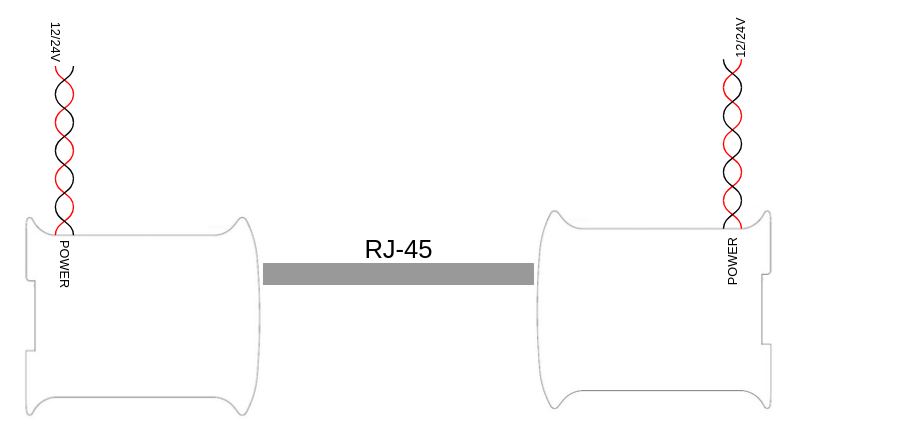
The M-Duino PLCs incorporate an Ethernet port of up to 110 Mbps, using the W5500 controller, which communicates with the Arduino using SPI. No hardware configuration is required beyond powering the PLC with a 12-24 Vdc power supply.
Software Prerequisites
Install the industrialshields-avr boards package, which includes an Ethernet library with built-in examples. To access them, open the Arduino IDE and go to File > Examples > Ethernet. For setup instructions, see the Initial Software Setup guide.
Example
The sketch below is a connectivity diagnostic. It initializes the W5500 Ethernet controller using DHCP, identifies the hardware revision, and attempts a TCP connection to www.google.com on port 80.
#include "Ethernet.h"

#define REMOTE "www.google.com"

const uint16_t port = 80;
uint8_t mac[] = {0xAA, 0xBB, 0xCC, 0xDD, 0xEE, 0x01};

EthernetClient c;

////////////////////////////////////////////////////////////////////////////////////////////////////
void setup() {
  Serial.begin(9600L);
  Serial.println("ethernet started");

  test();
}

////////////////////////////////////////////////////////////////////////////////////////////////////
void loop() {
  if (!c.connected()) {
    Serial.println("Disconnected");
    test();
  }
  delay(1000);
}

////////////////////////////////////////////////////////////////////////////////////////////////////
void test() {
  // if you need a DHCP IP use this configuration:
  Ethernet.begin(mac);

  switch (Ethernet.hardwareStatus()) {
    case EthernetW5100:
      Serial.println("5100 found");
      break;

    case EthernetW5200:
      Serial.println("W5200 found");
      break;

    case EthernetW5500:
      Serial.println("W5500 found");
      break;

    default:
      Serial.println("Unknown hardware");
      break;
  }

  uint8_t MAC[6];
  Ethernet.MACAddress(MAC);
  for (int i = 0; i < 6; ++i) {
    if (i > 0) {
      Serial.print(':');
    }
    Serial.print(MAC[i], HEX);
  }
  Serial.println();

  // use this block with DHCP IP:
  Serial.println(Ethernet.localIP());
  if (Ethernet.localIP() == IPAddress({0,0,0,0})) {
    Serial.println("Local IP FAIL");
  } else {
    Serial.println("Local IP OK");
    if (c.connect(REMOTE, port)) {
      Serial.println("Remote connection OK");
    } else {
      Serial.println("Remote connection FAIL");
    }
  }
}
RTC
A Real-Time Clock (RTC) is an integrated circuit that tracks the current time and date independently of the main system, typically sustained by a backup battery when the main power is off. It is widely used in embedded systems for accurate timekeeping.
Configuration
The M-Duino Family includes a DS1307 RTC module connected to the Arduino using I²C. The module provides seconds, minutes, hours, day, date, month, and year information. A 3.3V lithium coin cell battery which maintains timekeeping when the PLC is unpowered.
Hardware Prerequisites
No hardware setup is needed. Power the PLC with a 12-24Vdc supply and ensure a lithium coin cell battery is installed to preserve time across power cycles.
Software Prerequisites
Use the RTC library included with the industrialshields-avr boards package. For setup instructions, see the Initial Software Setup guide.
Example
The skecth below sets the current date and time and then prints it to the serial monitor once per second.
//RTC library example
// by Industrial Shields

#include <RTC.h>

// Change to current date and time
const int YEAR = 2018;
const int MONTH = 3;
const int DAY = 28;
const int HOUR = 13;
const int MINUTE = 24;
const int SECOND = 25;

//const int TIME = 1522242547;
//UNIX timestamp (spent seconds since Jan 1 1970 00:00:00)

////////////////////////////////////////////////////////////////////////////////////////////////////
void setup() {
  Serial.begin(9600L);
  Serial.println("Configuring RTC: ");
  Serial.println();
  RTC.setYear(YEAR);                      //sets year
  RTC.setMonth(MONTH);                   //sets month
  RTC.setMonthDay(DAY);                   //sets day
  RTC.setHour(HOUR);                      //sets hour
  RTC.setMinute(MINUTE);                  //sets minute
  RTC.setSecond(SECOND);                  //sets second
  //RTC.setTime(TIME);                   //sets UNIX timestamp
  if(!RTC.write()){                       //RTC.write writes in the RTC memory all that has been set
    Serial.println("Write date error: Are the switches well placed?");
  }
}

////////////////////////////////////////////////////////////////////////////////////////////////////
void loop() {
  if (!RTC.read()) {
    Serial.println("Read date error: is time set?");
  } else {
    Serial.print("Time: ");
    Serial.print(RTC.getYear());
    Serial.print("-");
    Serial.print(RTC.getMonth());
    Serial.print("-");
    Serial.print(RTC.getMonthDay());
    Serial.print(" ");
    Serial.print(RTC.getHour());
    Serial.print(":");
    Serial.print(RTC.getMinute());
    Serial.print(":");
    Serial.print(RTC.getSecond());
    Serial.print(" (");
    Serial.print(RTC.getTime());
    Serial.println(")");
 }
 delay(1000);
}
Note
The configuration of the RTC's date and time in the setup() section has to only be uploaded once.
SD card
SD (Secure Digital) cards are compact, non-volatile flash storage devices. The M-Duino Family includes a built-in MicroSD slot with the following specifications:
- Slot type: MicroSD
- Maximum usable capacity: 32GB (higher cards are supported but only the first 32GB will be accessible)
- Supported file systems: FAT16, FAT32
Configuration
The SD card slot communicates with the Arduino over SPI.
Hardware Prerequisites
In order to use the SD with the M-Duino PLCs, check the top switch on zone A's back. For more information about the switches, see the Hardware Configuration section.
Attention
Remember to power the PLC with a proper 12-24Vdc power supply.
Software Prerequisites
Use the SD library included with the industrialshields-avr boards package. For setup instructions, see the Initial Software Setup guide.
Example
The sketch below initializes the SD card and recursively lists all the files and directories from the root, printing each name and file size to the serial monitor.
#include "SD.h"

File root;

void setup() {
  // Open serial communication and wait for port to open:
  Serial.begin(115200);

  // Wait for Serial Monitor to connect. Needed for native USB port boards only:
  while(!Serial);

  Serial.print("Initialize SD card...");

  int SS = SD.begin();
  if (!SS) {
    Serial.println("Initialization failed. Things to check:");
    Serial.println("1. is a card inserted?");
    Serial.println("2. is your wiring correct?");
    Serial.println("3. did you change the chipSelect pin to match your shield or module?");
    Serial.println("Note: press reset or reopen this serial monitor after fixing your issue!");
    while (true);
  } else {
    Serial.println(SS, DEC);
  }

  Serial.println("Initialization done.");
  root = SD.open("/");

  printDirectory(root, 0);
  Serial.println("Done!");
}

void loop() {
  // Nothing happens after setup finishes.
}

void printDirectory(File dir, int numTabs) {
  while (true) {
    File entry = dir.openNextFile();
    if (!entry) {
      // No more files
      break;
    }

    for (uint8_t i = 0; i < numTabs; i++) {
      Serial.print('\t');
    }
    Serial.print(entry.name());

    if (entry.isDirectory()) {
      Serial.println("/");
      printDirectory(entry, numTabs + 1);
    } else {
      // Files have sizes, directories do not
      Serial.print("\t\t");
      Serial.println(entry.size(), DEC);
    }
    entry.close();
  }
}
Direct Arduino Pins
If we want to use another Serial Port using this equipment, we can make use of some digital pins to create a Serial. The SoftwareSerial library has been developed to allow serial communication on other digital pins of the Arduino, using software to replicate the functionality. It is possible to have multiple software serial ports with speeds up to 115200 bps. A parameter enables inverted signaling for devices which require that protocol.
| M-Duino Pins | Arduino Mega Pins |
|---|---|
| SO | 50 |
| SI | 51 |
| SCK | 52 |
5 Vdc Signals
These pins can be programmed according to Arduino features such as I/Os operating at 5V or any additional features present in the pins.
- I²C Pins - SDA/SCL: The I²C protocl is meant to work in a pull-up configuration. In this case it reads 5V when nothing is connected.
- Serial 0 - RX0/TX0: The Serial0 protocol can work also as a 5V pin.
- Serial 1 - RX1/TX1: The Serial1 protocol can work also as a 5V pin. Always enabled.
- SPI - MISO/MOSI/SCK: These pins can only work as a 5V pins if the Ethernet protocol is not going to be used.
- Pin2/Pin3: These pins are only referred to the inputs I0.5/I0.6. If the switch configuration is in OFF position the pins Pin2/Pin3 will be available.
Serial0
If using the Serial0 pins, the USB communication cannot be working at the same time.
SPI
As the Ethernet protocol uses the SPI to communicate with the Arduino board, both behaviors cannot happen at the same time as the Ethernet would not work.