PlatformIO
Here you will find the necessary steps to program our Arduino based PLC using PlatformIO, from setting up your PC to completing the first program upload.
Requirements
- Arduino or ESP32 based Industrial Shields PLC.
- USB B or Micro USB cable (depending on the PLC).
- Computer running GNU/Linux, windows or macOS.
Installation
There are 2 ways of working with PlatformIO:
- PlatformIO IDE, which integrates with editors such as VS-Codium.
- PlatformIO Core, a comand line tool.
To install any of them, follow the corresponding steps.
About VSCodium
In this documentation we use VSCodium, a telemetry-free, open-source version of VS Code. It offers the same powerful features without concerns about data privacy or licensing. However, this tutorial can also be followed with VSCode.
- Make sure you have VSCodium properly installed. If you do not, you can download them from their website: https://vscodium.com/.
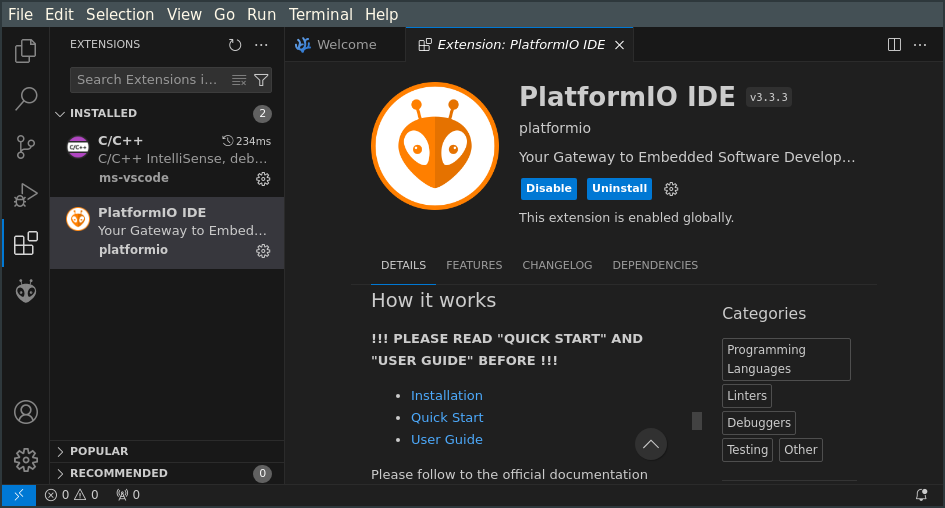
- Download the C/C++ Microsoft extension for your operative system (use the Download Extension button on the right column of the page).
- Install it in VSCodium by going to, on the left bar:
Extensions >
... > Install from VSIX...
and choosing the downloaded file. - Following the same procedure, download and install the PlatformIO IDE extension.
- Only on GNU/Linux, install udev rules for PlatformIO supported boards/devices: 99-platformio-udev.rules
- Install the PlatformIO Core according to the official documentation: Installer Script.
- In order to access PlatformIO Core outside PlatformIO IDE (e. g. using a terminal emulator), install Shell commands.
- Only on GNU/Linux, install udev rules for PlatformIO supported boards/devices: 99-platformio-udev.rules
PlatformIO
For more information about PlatformIO, check out the official documentation.
Starting a Project
This tutorial introduces you to the basics of PlatformIO, showing how to create a simple project for an Industrial Shields Arduino (or ESP32) PLC.
- Open VSCodium and press the PlatformIO: Home button on the bottom bar. Then click New Project, choose a name and select any board, as we will be manually setting the board later.
-
Modify the
platformio.inifile so it has the following contents, according to your PLC family:platformio.iniSelect your PLC model by changing the[env] platform_packages = framework-industrialshields-avr@https://apps.industrialshields.com/main/arduino/boards/industrialshields-boards-avr-1.2.0.tar.bz2 [env:board] platform = https://github.com/Industrial-Shields/platform-industrialshields-avr.git board = mduinoplc_21+ framework=arduinoboardoption. The available models can be seen here.platformio.iniChange the following parameters according to your PLC model:[env] platform_packages = framework-industrialshields-esp32@https://apps.industrialshields.com/main/arduino/boards/industrialshields-boards-esp32-2.5.1.tar.bz2 [env:board] platform = https://github.com/Industrial-Shields/platform-industrialshields-esp32.git framework = arduino board = esp32plc_21 ; You don't need these lines for 10 IOs, 14 IOs or the WiFi module custom_version = 3 custom_click1 = None custom_click2 = NoneParameter Device Family Optional (Default) Options boardESP32, ESP32 14 No Availabe models can be seen here. custom_versionESP32 Yes ( 3)1,3custom_click1ESP32 Yes ( None)None,GPRS,NB,LTE,CAN,LORA_EUROPE,LORA_AMERICA,LORA_ASIAcustom_click2ESP32 Yes ( None)None,GPRS,NB,LTE,CAN,LORA_EUROPE,LORA_AMERICA,LORA_ASIAcustom_clickESP32 14 Yes ( None)None,NB,LTE,DALI,LORA_EUROPE,LORA_AMERICA,LORA_ASIAPackage version
The platform package version can also be changed, by modifying the
platform_packagesparameter. Look at the available versions here. -
Modify the
src/main.cppfile in the project folder, where the main program is located, to start your program.Program example
Try this simple sketch to alternate the value on a digital output:
-
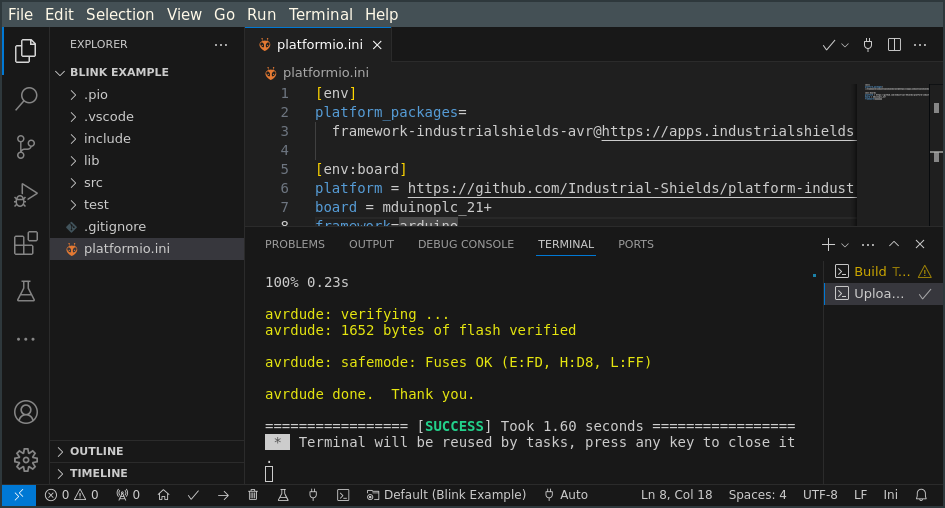
Finally, compile and upload the program, using the buttons on the bottom PlatformIO Toolbar:
- Build: build the project (or press Ctrl+Alt+B).
- Upload: autodetect the connected board and program it (or press Ctrl+Alt+U).
After uploading, the PLC will start running the program. The operation execution and result will be visible on the terminal window.
Setting the port
You can manually set the port using the Set upload port.
- Go to the directory where you want to locate your project, for
example:
/home/user/Documents/PlatformIO/Projects/Exampleand run the following command to create the project: -
Now that you have a PlatformIO project, let's configure it for the PLC model being used. Open the
platformio.inifile and modify it accordingly:platformio.iniSelect your PLC model by changing the[env] platform_packages = framework-industrialshields-avr@https://apps.industrialshields.com/main/arduino/boards/industrialshields-boards-avr-1.2.0.tar.bz2 [env:board] platform = https://github.com/Industrial-Shields/platform-industrialshields-avr.git board = mduinoplc_21+ framework=arduinoboardoption. The available models can be seen here.platformio.iniChange the following parameters according to your PLC model:[env] platform_packages = framework-industrialshields-esp32@https://apps.industrialshields.com/main/arduino/boards/industrialshields-boards-esp32-2.5.1.tar.bz2 [env:board] platform = https://github.com/Industrial-Shields/platform-industrialshields-esp32.git framework = arduino board = esp32plc_21 ; You don't need these lines for 10 IOs, 14 IOs or the WiFi module custom_version = 3 custom_click1 = None custom_click2 = NoneParameter Device Family Optional (Default) Options boardESP32, ESP32 14 No Availabe models can be seen here. custom_versionESP32 Yes ( 3)1,3custom_click1ESP32 Yes ( None)None,GPRS,NB,LTE,CAN,LORA_EUROPE,LORA_AMERICA,LORA_ASIAcustom_click2ESP32 Yes ( None)None,GPRS,NB,LTE,CAN,LORA_EUROPE,LORA_AMERICA,LORA_ASIAcustom_clickESP32 14 Yes ( None)None,NB,LTE,DALI,LORA_EUROPE,LORA_AMERICA,LORA_ASIAPackage version
The platform package version can also be changed, by modifying the
platform_packagesparameter. Look at the available versions here. -
Modify the
src/main.cppfile in the project folder, where the main program is located, to start your program.Program example
Try this simple sketch to alternate the value on a digital output:
-
Build the project and upload it to the PLC with the following command, note that you can manually specify the port with the
--upload-portoption: